Music Video Editor
You provide the content, we provide the result
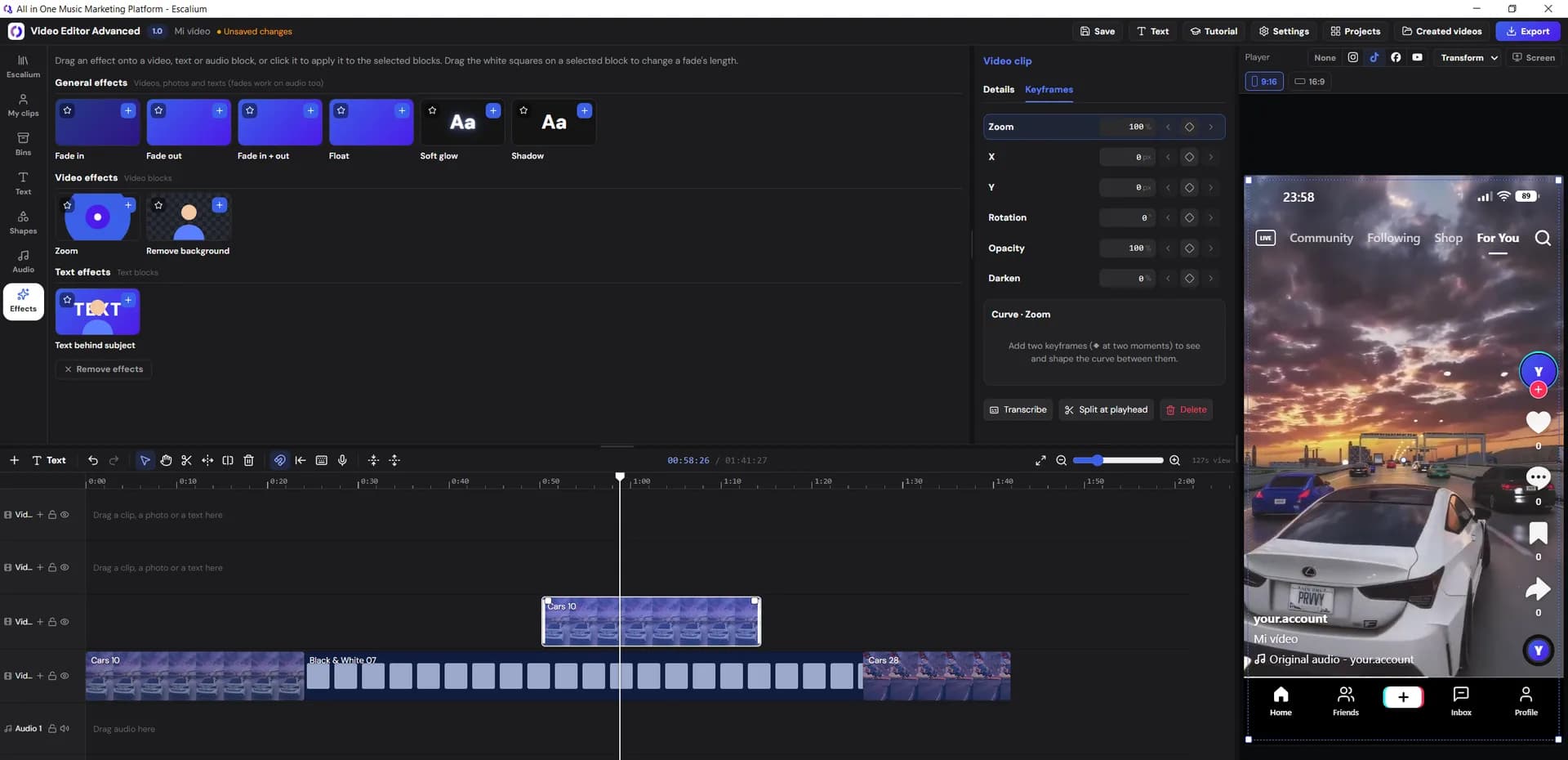
Escalium's music video editor is for artists who already have footage: phone clips, a shoot, live videos. Bring them in, put your song under them and edit a real music video. It all happens in the Advanced Video Editor, in your browser or in the desktop app.
- Free to start
- 300+ clips to fill the gaps
- Export up to 4K on Pro
What you bring
Use the footage you already have
You don't need a film crew. Most artists have more footage than they think. Here is what works, and how each kind gets into the editor.
Clips from your phone
Rehearsals, the studio, the street, backstage. Phone footage is fine for a music video if the light is good and the phone stays still.
How it gets in
Scan a QR code and send them from your phone. They arrive in full quality, not squashed like in a chat app.
Footage from a shoot
A day with a camera and a friend, or a small team. Long takes of you singing the whole song are the most useful. You can cut between them later.
How it gets in
Upload the files from your computer. For big camera files, the desktop app works best.
Live videos and videos online
A concert, a session, or a video already on YouTube, TikTok, Instagram or Vimeo. Only use videos that are yours or that you have permission to use.
How it gets in
Paste the link. Escalium downloads the video and cuts its best shots to the beat of your song. YouTube links work in the desktop app.
Nothing for one part of the song
Maybe you have the chorus covered but not the second verse. You don't have to film again.
How it gets in
Fill the gap with one of the 300+ Escalium clips: cars, drone shots, rain, galaxy and more.
Step by step
How to edit a music video in Escalium
These are the steps of a music video edit, in the order you do them. Each one says what you do in the editor and what you get.
Step 1
Start a project with your song
Create a project and choose its shape: vertical (9:16) or horizontal (16:9). Put your song on the audio track first. Everything else gets lined up with it.
- Pick 16:9 for YouTube
- Pick 9:16 for TikTok, Reels and Shorts
Step 2
Bring your footage in
Add your clips from your computer, your phone or a link. Keep the takes you use often in Power Bins: folders on your computer that show up in every project.
- Phone transfers: 20 a month free, unlimited on Pro
- Footage from a link: 3 a week free, unlimited on Pro
Step 3
Line up your takes with the song
Put a take of you singing on the timeline. Play it with the song and slide the clip until your lips match the words. Do it once for each take.
- Watch your mouth, not the sound wave
- Put each take on its own video layer
Step 4
Cut to the beat
Play the song and stop on a kick or a snare. Press Split at playhead to cut there, then switch to another take. Keep longer shots in the verse and cut faster in the chorus.
- Split, trim and move clips while the song plays
- Footage from a link comes already cut to the beat
Step 5
Fill the gaps
If a part of the song has no footage, open the Escalium clip library and drag a clip onto the timeline. Star the ones you like, so they are always at hand.
- 300+ clips sorted in folders
- Your own photos and videos sit next to them

Step 6
Add speed and movement
A speed ramp makes a clip go slow, then fast, or the other way round. Pick a preset (Montage, Hero or Bullet) and adjust it. Keyframes let you zoom in, move, turn or fade a clip over time.
- Speed ramp presets you can change
- Keyframes for zoom, position, rotation and opacity
Step 7
Make the colours match
Clips from different phones and cameras never look the same. Fix the colour of one good shot first. Then copy it and paste it on the others, so the whole video looks like one place.
- Colour wheels, curves, HSL and LUTs (ready-made colour looks)
- A split view shows before and after
Step 8
Put the lyrics or titles on screen
Click Transcribe on the song. The lyrics land on the timeline, each word timed to the voice. Fix any word, then pick a font and a text animation. Add your name and the song title the same way.
- 99 languages
- Free transcription on your own computer
Step 9
Check it on each app and export
Switch the preview to TikTok, Instagram, Facebook or YouTube Shorts. You see where each app's buttons cover your video. Set the sound to the right loudness, then export.
- Loudness in LUFS, the unit apps use to measure how loud a video is
- 1080p free, up to 4K on Pro
What you get
One edit, four videos
When the edit is done, you don't start again for each app. Export the same project in another shape, and move the frame where the crop cuts you off.
The full music video
The whole song, horizontal, for your YouTube channel. This is the version you link to everywhere.
1920×1080 or 4K
A vertical cut of the chorus
15 to 30 seconds of the best part, for TikTok, Reels and Shorts. Start right on the hook.
1080×1920
A post for the feed
For the Instagram and Facebook feed, where a 4:5 video fills more of the screen than a square one.
1080×1350
A square teaser
A few seconds before the release, with the date on screen, to tell people the video is coming.
1080×1080
Free or Pro
What you can do for free
You can edit a whole music video on the free plan. Pro removes the limits and adds 4K. Pro means the Video Editor Pro plan, or any plan from Creator up.
Video Editor Pro costs $15 a month, or $12 a month paid yearly.
See every plan| What | Free | Pro |
|---|---|---|
| Export quality | 1080p | Up to 4K |
| Effects, transitions and text animations | Try the Pro ones | All of them |
| Templates | All | All |
| Footage from a link | 3 a week | Unlimited |
| Transfers from your phone | 20 a month | Unlimited |
| Transcription on your computer | Fast model | Fast model and most accurate model |
| Escalium transcription (on our servers) | — | 5 hours a month |
FAQ
Questions about the music video editor
Yes. The free plan has the full timeline and every template, and exports in 1080p. Pro effects and 4K exports need Pro: the Video Editor Pro plan, or Creator and up.
Yes. Scan a QR code and send the clips from your phone to the editor. They arrive in full quality. The free plan includes 20 transfers a month, and Pro has no limit.
Put the song on the audio track first. Play it, stop on the beat and press Split at playhead. If you add footage from a link, Escalium cuts its best shots to the beat of your song for you.
Only if it's yours or you have permission to use it. Paste the link and tick the box that says so. TikTok, Instagram and Vimeo links work in the browser, YouTube links in the desktop app. Each video can be up to 2 hours long.
Fill the gaps with clips from the Escalium library. There are more than 300, in folders like cars, drone shots, rain and galaxy. They come with the editor at no extra cost.
No. The editor works in your browser. There is also a desktop app for Windows (a Mac version is coming soon), which is better for big camera files and long projects.
No. You export the video and upload it yourself to YouTube, TikTok, Instagram or wherever you want.
Yes, it's the same editor. This page shows how to use it for a music video. The Advanced Video Editor page lists all of its tools.
Your next music video
Turn your footage into a real music video
Open the editor, put in your song and your clips, and have a first cut today. It's free to start, in your browser or on your computer.
- No card needed
- 300+ clips to fill the gaps
- Every app's shape from one project
